
XLOOKUP with Dropdown in Excel — The Smartest Lookup Trick You Need Today
If you want fast, dynamic and error-free lookups, then learning XLOOKUP with Dropdown in Excel is one of the smartest tricks you can add to your workflow. Whether you are building dashboards, MIS reports, financial models, salary sheets or product search tools, this combination makes your Excel files interactive, responsive and highly professional.
In this guide, you’ll learn how to set it up in less than one minute — exactly as shown in the script:
Create a dropdown → Apply XLOOKUP → Change dropdown → Result updates instantly.
Let’s unlock this powerful Excel skill.
Table of Contents
What Is XLOOKUP with Dropdown in Excel?
XLOOKUP with Dropdown in Excel simply means using a Data Validation dropdown list as the lookup input value for the XLOOKUP formula.
So instead of typing search values manually, you select an item from a dropdown, and Excel automatically retrieves the matching result.
This technique:
- reduces errors
- makes dashboards dynamic
- saves time
- makes reports more user-friendly
➤ Think of it as “searching without typing.”
Why XLOOKUP with Dropdown in Excel Is a Game-Changer
Here are some powerful benefits:
1. Super Fast Lookups
You no longer need to manually enter employee names, product codes, or IDs. Just pick from the dropdown and Excel does the rest.
2. Professional Dashboard Experience
Dropdown + XLOOKUP = interactive reports that feel automated.
3. Zero Errors
Manual typing mistakes? Gone!
4. Perfect for Repetitive Tasks
MIS teams, HR, finance, sales analysts — everyone gets speed + accuracy.
Step-by-Step Guide: How to Use XLOOKUP with Dropdown in Excel
(Your complete script converted into a full professional tutorial)
Below is the exact sequence from your Shorts script, expanded with explanations:
Step 1: Create a Dropdown Using Data Validation
Press:
Alt + A + V + V
This keyboard shortcut directly opens Data Validation → List.
Now:
- Select the cell where you want your dropdown (for example, C2).
- Choose “List”
- In Source, select your lookup values (e.g., A2:A20).
Your dropdown is ready!
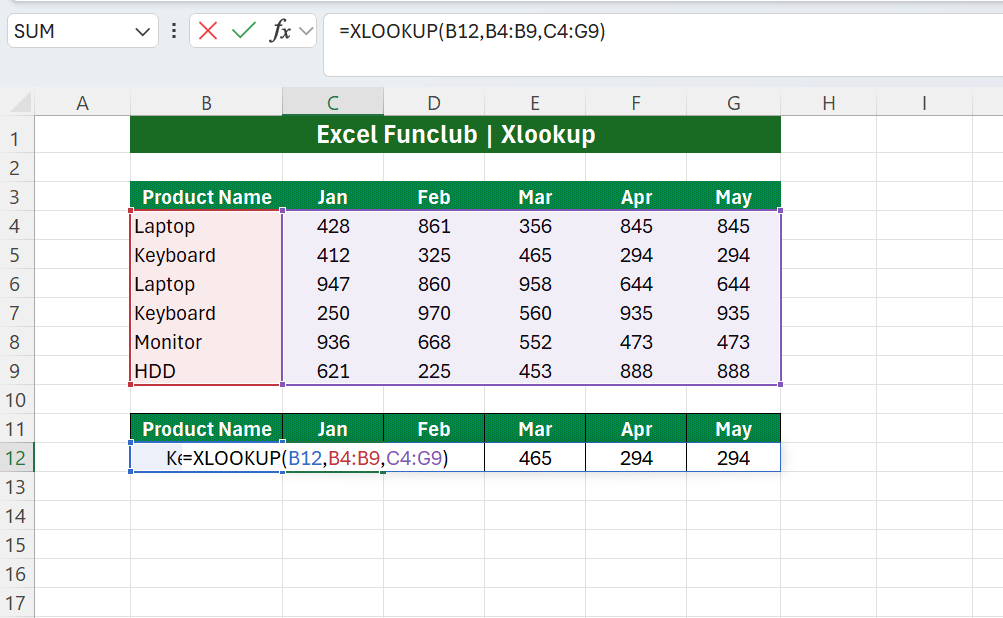
Step 2: Start Writing the XLOOKUP Formula
In the results cell (e.g., D2), type:
=XLOOKUP(
Excel will now expect 3 main inputs:
- Lookup_value → Dropdown cell
- Lookup_array
- Return_array
Step 3: Select All Ranges
As per the script:
- Select dropdown cell
- Select search range
- Select result range
Example:
=XLOOKUP(C2, A2:A20, B2:B20)
- C2 = Dropdown
- A2:A20 = Names, Product IDs, Codes (lookup array)
- B2:B20 = Salary, Price, Region, Category (result array)
Step 4: Change Dropdown Value → Result Updates Automatically
This is the magic!
Whenever you choose a new item from the dropdown, XLOOKUP fetches the matching value instantly.
No typing.
No mistakes.
No repeated effort.
Real-Life Use Cases of XLOOKUP with Dropdown in Excel
Here are the most practical applications:
1. Salary Lookup
Choose employee name → See salary instantly.
2. Product Lookup
Select product code → Retrieve price, stock, category.
3. Customer Lookup
Dropdown of customer IDs → Display phone number, region, credit limit.
4. Employee Performance Dashboard
Dropdown for employee name → Show KPIs.
5. Report Automation
Refresh data daily but dropdown + XLOOKUP continues working seamlessly.
Here is a common setup:
| A (Lookup) | B (Result) |
|---|---|
| Product A | 120 |
| Product B | 150 |
| Product C | 200 |
Dropdown → Cell C2
XLOOKUP → Cell D2
Formula:
=XLOOKUP(C2, A2:A4, B2:B4)
➡️ Video Guide: How to Use XLOOKUP with Dropdown in Excel
Tips to Improve Your XLOOKUP + Dropdown System
Use Dynamic Ranges
Convert your dataset into a table using Ctrl + T.
Now your dropdown and XLOOKUP auto-expand.
Use Fallback Values
Add a safe default using:
=XLOOKUP(C2, A2:A20, B2:B20, "Not Found")
Use Multiple Return Columns
XLOOKUP can return entire rows:
=XLOOKUP(C2, A2:A20, B2:E20)
This is perfect for dashboards!
Common Mistakes (and How to Avoid Them)
❌ Wrong Range Selection
Ranges must be equal size.
❌ Using Spaces in Dropdown Source
Clean your list before using it.
❌ Merged Cells
Avoid them—they break Data Validation.
❌ Forgetting to Use Absolute References
If copying the formula downwards, lock ranges with $.
Final Thoughts
Using XLOOKUP with Dropdown in Excel is one of the most powerful and time-saving techniques for analysts, MIS teams, HR, finance professionals and dashboard builders. It turns static Excel files into interactive tools and gives your reports a clean, professional feel.
Start using this trick in your next report, and you’ll instantly notice the difference.
If you need images, diagrams or templates, just tell me — I’ll create them for your blog.
FAQ: XLOOKUP with Dropdown in Excel
What is the benefit of using XLOOKUP with a dropdown?
It saves time, removes typing errors, and makes reports interactive and dynamic — far better than manual searching.
Can I use XLOOKUP with data stored in another sheet?
Yes! Just select ranges from the other sheet. Example:=XLOOKUP(C2, Sheet2!A2:A20, Sheet2!B2:B20)
Does XLOOKUP work on older versions like Excel 2013 or 2016?
No. XLOOKUP is available in Excel 365 and Excel 2019+ only.
Why is my dropdown not updating the XLOOKUP result?
Possible reasons:
Wrong ranges selected
Extra spaces in data
Data not in proper list format
Can I return multiple columns using XLOOKUP?
Yes. Select the full return array (B:E). It will return all matching columns.
Can I add images or product photos with this setup?
Yes, using Excel’s “Camera tool” or INDEX+XMATCH image lookup method.
Also read: 25 Essential Excel Formulas List 2025

1 thought on “XLOOKUP with Dropdown in Excel (Powerful Trick You Must Try!)”