
Managing dozens of Excel files every day can be tiring, repetitive, and prone to mistakes. Whether you work in MIS, HR, Accounts, Sales, Operations, or Data Analysis, you often receive multiple Excel reports that you need to combine manually. That’s why learning how to merge multiple Excel files into one workbook using VBA is one of the most powerful automation skills for Excel users.
This method allows you to:
✔ Merge unlimited files
✔ Avoid manual copy–paste
✔ Import all sheets instantly
✔ Save hours of repetitive work
✔ Create a professional automation button inside Excel
Let’s walk through the complete process in simple steps.
Table of Contents
What Is VBA File Merging?
VBA (Visual Basic for Applications) allows Excel to perform automated operations. When you learn how to merge multiple Excel files into one workbook using VBA, you are essentially creating a macro that:
- Reads all Excel files in a folder
- Opens them one by one
- Copies each sheet
- Pastes them into your main workbook
- Renames or organizes them automatically
The result?
A clean, fully combined workbook created with just one click.
Why Learn How to Merge Multiple Excel Files into One Workbook Using VBA?
Here are strong reasons why professionals depend on this automation:
✔ Saves Massive Time
Merging 50+ files manually may take hours — VBA does it in seconds.
✔ Eliminates Errors
No accidental missing sheets, duplicate pasting, or formatting issues.
✔ Works for Any Folder
Just paste the folder path and VBA handles everything.
✔ Perfect for Daily/Weekly/Monthly Reports
If your team sends files every day, this automation becomes your best friend.
✔ Reusable Macro
You set it up once and use it forever.
Step-by-Step Guide: How to Merge Multiple Excel Files into One Workbook Using VBA
Follow these steps exactly as written. Even beginners can automate file merging easily.
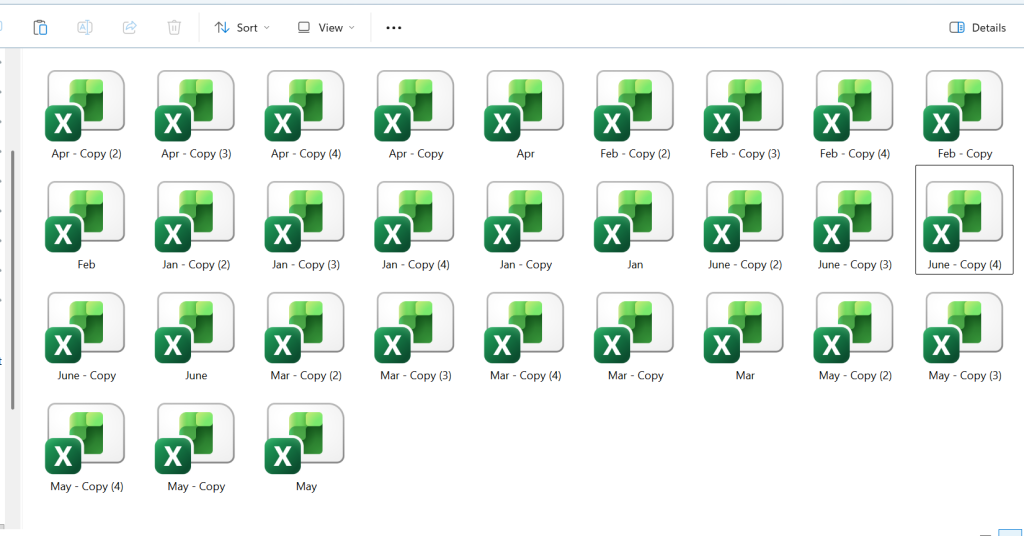
Step 1: Enable Developer Tab & Open Visual Basic
- Go to File → Options
- Select Customize Ribbon
- Tick Developer
- Click OK
Now:
- Click Developer → Visual Basic to open the VBA editor.
Step 2: Insert a New Module
Inside the VB editor:
- Right-click VBAProject (YourFile.xlsm)
- Click Insert → Module
A blank module window will open. This is where you will paste your macro.
⭐ Step 3: Insert Your VBA Code
Sub Import_Files_Into_Individual_Sheets()

    Dim FolderPath As String
    Dim FileName As String
    Dim wbSource As Workbook
    Dim wsTarget As Worksheet
    Dim FileOnlyName As String

    '---------------------------
    ' User se folder path lena
    '---------------------------
    FolderPath = InputBox("Enter the folder path jahan files rakhe hain:", "Folder Path")

    If FolderPath = "" Then
        MsgBox "Folder path required!", vbExclamation
        Exit Sub
    End If

    ' Ensure last slash
    If Right(FolderPath, 1) <> "\" Then FolderPath = FolderPath & "\"

    ' File loop open
    FileName = Dir(FolderPath & "*.xlsx")

    Application.ScreenUpdating = False

    While FileName <> ""

        FileOnlyName = Replace(FileName, ".xlsx", "")

        ' ---- NEW SHEET ADD ----
        Set wsTarget = ThisWorkbook.Sheets.Add
        On Error Resume Next
        wsTarget.Name = FileOnlyName
        On Error GoTo 0

        ' ---- OPEN SOURCE FILE ----
        Set wbSource = Workbooks.Open(FolderPath & FileName)

        ' ---- COPY DATA FROM SHEET 1 ----
        wbSource.Sheets(1).UsedRange.Copy wsTarget.Range("A1")

        wbSource.Close SaveChanges:=False

        FileName = Dir
    Wend

    Application.ScreenUpdating = True

    MsgBox "All files imported successfully!", vbInformation

End Sub
After pasting, continue with the steps below.
Step 4: Save the Workbook as XLSM
Click File → Save As and choose:
✔ Excel Macro-Enabled Workbook (.xlsm)
This step is VERY important — macros won’t run in .xlsx format.
Assign the Macro to a Button
This step transforms the macro into a clean, clickable automation tool.
How to Add a Button
- Go to Developer → Insert
- Under Form Controls, choose Button
- Draw the button anywhere on the sheet
Assigning the Macro
- A popup will appear
- Select the macro (your VBA procedure)
- Click OK
Now your button is ready for 1-click automation.
How to Run the Merge Automation
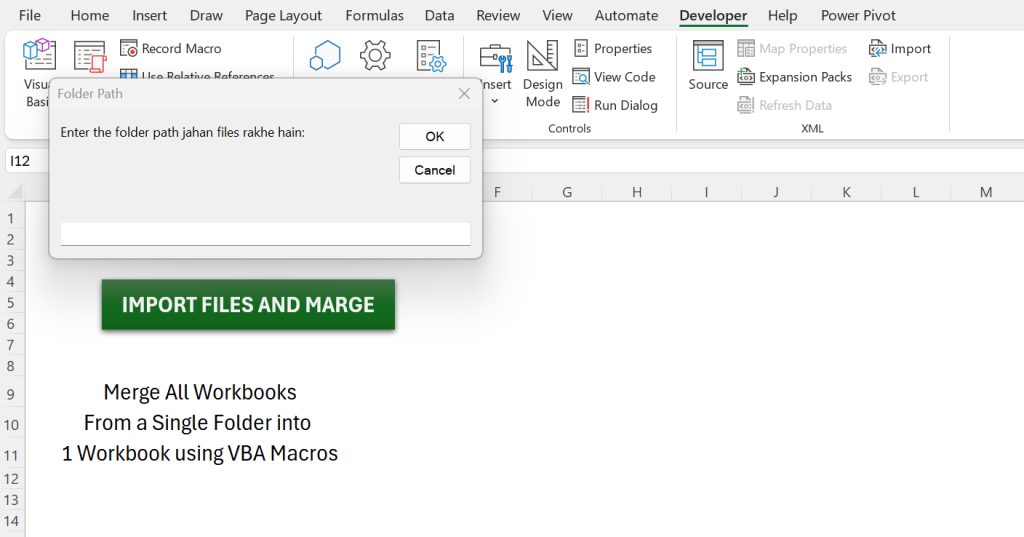
Click the button you added.
A message box will appear:
👉 “Please enter the folder path containing Excel files”
Steps:
- Open File Explorer
- Navigate to the folder containing Excel files
- Copy the folder path
- Paste it into the prompt
- Press OK
The macro will now:
✔ Open every file in the folder
✔ Copy sheets
✔ Append them into your master workbook
✔ Save the final merged workbook
This is the real power of how to merge multiple Excel files into one workbook using VBA — automation with minimal effort.
Video Guide: How to Merge Multiple Excel Files into One Workbook Using VBA
Benefits of Using VBA to Merge Excel Files
⭐ 1. Extremely Fast
Even 300 files merge instantly.
⭐ 2. Reliable
VBA doesn’t make human mistakes.
⭐ 3. No Add-Ins
Uses built-in Excel features only.
⭐ 4. Customizable
Modify the macro to merge:
- Specific sheets
- Only data ranges
- Files with certain names
- Subfolders
⭐ 5. Ideal for Excel Automation Lovers
If you follow ExcelFunClub, this becomes one of your favorite macros.
Best Practices When Merging Excel Files
✔ Put all files into one clean folder
✔ Ensure filenames do not contain special characters
✔ Avoid merging protected sheets
✔ Close all Excel files before running the macro
✔ Keep a backup folder for raw files
✔ If merging daily reports, create a fresh workbook each month
Troubleshooting: Common Issues & Solutions
❌ Macro not running
Try saving the workbook as .xlsm and restart Excel.
❌ “Path not found” error
Ensure the folder path ends correctly, example:
C:\Users\Admin\Desktop\Reports
❌ Sheets not merging
One of the files may be:
- Corrupted
- Password-protected
- Already open in background
Close or remove the offending file.
❌ Duplicate sheet name error
Add this line in VBA (if needed):
On Error Resume Next
FAQs: How to Merge Multiple Excel Files into One Workbook Using VBA
Can I merge only specific sheets from each workbook?
Yes. Modify the VBA loop to check sheet names before merging.
Can I merge files from multiple subfolders?
Yes, but you must add recursive folder search in VBA.
Will formulas also be copied?
Yes. VBA preserves formulas, values, and formatting.
Can I use this macro on Mac Excel?
Yes, but folder selection code may require slight modification.
How many files can I merge at once?
There is no limit — VBA handles hundreds of files easily.
Can I schedule the merging automatically every day?
Yes. Use Workbook_Open + Windows Task Scheduler for automation.
Final Thoughts
Learning how to merge multiple Excel files into one workbook using VBA is a game-changing automation skill for anyone who deals with repetitive data processing. With a simple macro and a clickable button, you can merge hundreds of reports in seconds — saving time, avoiding manual errors, and boosting productivity.
Official Microsoft VBA Guide:
https://learn.microsoft.com/en-us/office/vba/api/overview/excel
✔ Suggestion: how to merge multiple Excel files into one workbook using VBA
Also check: Convert Numbers to Words in Excel(Step-by-Step VBA Code)
