Table of Contents
Create Barcodes in Excel — The Fastest & Easiest Method (No Software Needed!)
If you’re looking for a simple, reliable and fast method to create barcodes in Excel, this is the most beginner-friendly tutorial you will find. With one formula and one free font, you can generate clean, scannable barcodes instantly — perfect for inventory sheets, product tracking, billing systems, retail management, warehouses and more.
This method is based exactly on your Excel Shorts script:
Type “=” → Select product number → Change font to Libre Barcode 39 → Instantly get barcodes.
Let’s explore the complete guide with examples.
What Are Barcodes in Excel?
Barcodes are machine-readable codes that store alphanumeric data. In Excel, you can convert normal product numbers into barcode format using special barcode fonts like Libre Barcode 39, Code 128, or Code 39.
When you use the right barcode font, Excel automatically converts text or numbers into barcode visuals. No add-ins. No VBA. No third-party tools.
This is the most convenient way to keep everything inside Excel.
Why Create Barcodes in Excel?
Using Excel for barcode generation gives you several advantages:
✔ 1. No Software Required
You don’t need a barcode generator tool — Excel does the job perfectly.
✔ 2. Perfect for Inventory Management
Easily create barcodes for product IDs, SKUs, stock numbers and dispatch sheets.
✔ 3. Supports Mass Generation
Once you apply the formula to one cell, drag it down to generate hundreds of barcodes instantly.
✔ 4. Works with Any Scanner
Most barcode scanners support Code 39, making it compatible with retail, warehouse and POS systems.
✔ 5. Saves Time
No printing issues, no manual errors — Excel automates everything.
Step-by-Step Guide: How to Create Barcodes in Excel
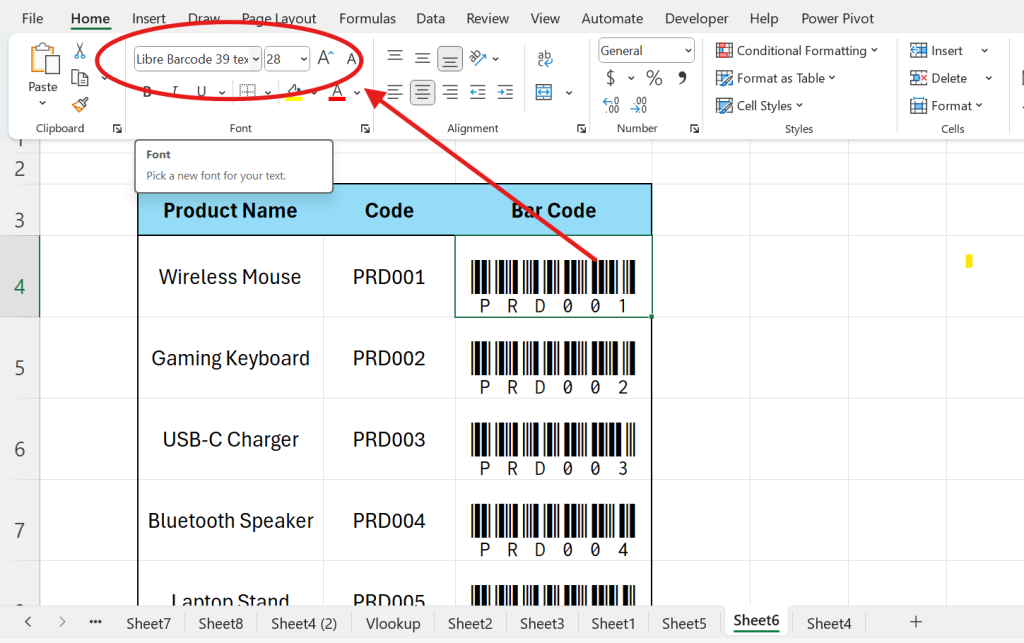
Step 1: Type the Formula to Reference the Product Number
Select a blank cell where you want the barcode to appear.
Type:
=
Then click the cell containing the product number.
For example:
=A2
If A2 contains 12345, the formula will return 12345.
Step 2: Apply the Formula to the Entire Range
Drag the fill handle downward to apply the formula to all rows.
Now every cell in the column will contain the product numbers.
Step 3: Convert the Numbers into Barcodes
Select the full formula column → Change font to:
Libre Barcode 39 Text
The moment you change the font, your numbers convert into fully scannable barcodes.
Step 4: That’s It — Your Barcodes Are Ready Instantly
No extra steps.
No plugins.
No formatting issues.
This method works smoothly on Windows, Mac and Office 365.
Downloading Libre Barcode 39 Font
Libre Barcode 39 is a free font provided by Google.
How to Download It:
- Go to Google Fonts:
https://fonts.google.com/specimen/Libre+Barcode+39 - Click Download Family
- Extract ZIP
- Install the Libre Barcode 39 Text font on your system
- Windows → Right-click → Install
- Mac → Double-click → Install
After installation, restart Excel.
Why Choose Libre Barcode 39?
- 100% free
- Compatible with barcode scanners
- Light weight & clean
- Works perfectly in print
Common Use Cases When You Create Barcodes in Excel
1. Retail & Store Management
Generate barcodes for:
- Products
- SKUs
- Variants
2. Warehouse Inventory Sheets
Scan items directly into Excel for stock count.
3. Billing & POS Systems
Attach barcodes to invoices and receipts.
4. Asset Management
Assign barcodes to:
- Laptops
- Mobiles
- Company equipment
5. E-Commerce Operations
Useful for order labels, packaging, batch numbers and tracking.
Video Guide: How to Create Barcodes in Excel
Best Practices When Creating Barcodes in Excel
1. Always Use Capital Letters for Code 39
Some scanners struggle with lowercase characters.
2. Avoid Spaces
Use hyphens - or underscores _ instead.
3. Increase Row Height
Barcodes should be clear and easy to scan.
4. Center Align Barcodes
Go to Home → Alignment → Center
This improves readability.
5. Print Test Before Mass Printing
Use a scanner to confirm everything is scannable.
Troubleshooting Barcode Errors
❌ Barcode not scanning?
✔ Ensure you installed Libre Barcode 39 Text font.
✔ Remove spaces from the cell.
✔ Check if the scanner supports Code 39.
❌ Excel shows “#######” instead of barcode
Increase column width. Barcodes need space to display.
❌ All barcodes look the same
You may have referenced the wrong cell. Recheck your formula.
❌ Scanning gives partial values
Make sure:
- Barcode size is large enough
- You are not using merged cells
- Print quality is high
FAQs: Create barcodes in Excel
Can I create barcodes in Excel without installing a font?
No, Excel does not have built-in barcode fonts. Installing a font is required.
Which barcode font is best for Excel?
Libre Barcode 39 is the easiest and most scanner-friendly font for beginners.
Can I generate QR codes in Excel?
Yes, using Excel’s WEBSERVICE function or online QR generators.
Can I print barcodes directly from Excel?
Absolutely. Just ensure:
Page layout is correct
Barcodes are large enough
The font is installed on your PC
Why does my barcode show asterisks * ?
Some fonts require start/stop characters.
Libre Barcode 39 Text does not — so you don’t need to add * or %.
Are these barcodes compatible with retail scanners?
Yes. Code 39 is supported by almost all barcode scanners worldwide.
Final Thoughts
Creating barcodes in Excel is incredibly simple, powerful and efficient — especially when using the Libre Barcode 39 Text font. Whether you are managing a warehouse, handling retail inventory, preparing product sheets or building invoice systems, this trick saves time and reduces manual errors.
With just one formula and one font, you can create hundreds of barcodes instantly inside Excel.
Internal & External Links
External Link
Learn more about Barcode 39 standards:
https://en.wikipedia.org/wiki/Code_39
Internal Link Suggestion
Also read: XLOOKUP with Dropdown in Excel

1 thought on “Create Barcodes in Excel (Instant Barcode Generator Trick!)”